Simplifying Development with Dev Containers
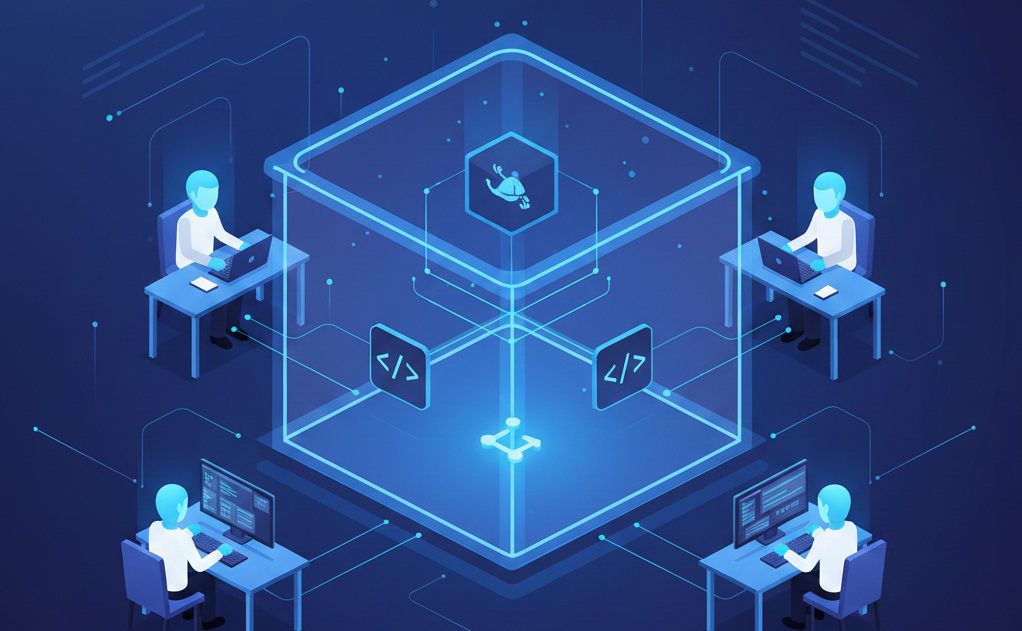
Simplifying Development with Dev Containers
One of the most challenging aspects of software development is setting up and maintaining consistent development environments. Whether you're onboarding new team members or switching between projects, environment setup can be time-consuming and error-prone. Dev Containers offer an elegant solution to this common problem.
What are Dev Containers?
Dev Containers provide a way to define and package your entire development environment into a reproducible configuration. Using Docker under the hood, they allow you to create isolated, consistent environments that can be shared across your team.
Why Use Dev Containers?
Consistent Environments
No more "it works on my machine" problems! Dev Containers ensure that every team member has identical development environments, from Node.js versions to VS Code extensions.
Quick Setup
New team members can get started with just a few commands:
git clone your-project
code your-project
VS Code will automatically detect the Dev Container configuration and prompt to reopen in a container.
Setting Up Dev Containers
First, create a .devcontainer directory in your project root and add two key files:
devcontainer.json
{
  "name": "your-project-name",
  "build": {
    "dockerfile": "Dockerfile"
  },
  "remoteUser": "node",
  "customizations": {
    "vscode": {
      "extensions": [
        "esbenp.prettier-vscode",
        "dbaeumer.vscode-eslint",
        "dsznajder.es7-react-js-snippets",
        "bradlc.vscode-tailwindcss",
        "ms-azuretools.vscode-docker"
      ]
    }
  },
  "forwardPorts": [3000],
  "postCreateCommand": "npm install"
}
Dockerfile
FROM node:18

# Install additional tools
RUN apt-get update && apt-get install -y \
    git \
    curl \
    && rm -rf /var/lib/apt/lists/*

# Set working directory
WORKDIR /workspace

# Install global npm packages
RUN npm install -g npm@latest
Benefits Beyond Environment Setup
Dev Containers offer more than just environment consistency:
VS Code Integration
- Pre-configured extensions
- Consistent formatting and linting rules
- Shared debugging configurations
- Integrated terminal with all tools pre-installed
Team Productivity
- Eliminate hours of setup time
- Reduce environment-related issues
- Easier onboarding for new team members
- Consistent development experience across different operating systems
Project Isolation
- Different projects can use different Node.js versions
- No conflicts between global dependencies
- Clean separation of concerns
Best Practices
- Keep it Light: Only include essential tools and extensions in your Dev Container
- Document Well: Include clear instructions in your README.md
- Version Control: Always commit your Dev Container configuration
- Regular Updates: Keep base images and tools up to date
Getting Started
To start using Dev Containers in your project:
- Install Docker on your machine
- Install the "Remote - Containers" extension in VS Code
- Add the Dev Container configuration to your project
- Reopen your project in the container
Conclusion
Dev Containers represent a significant step forward in development workflow optimization. By eliminating environment setup headaches, they allow developers to focus on what matters most: writing code. Give them a try in your next project, and experience the joy of hassle-free environment setup!